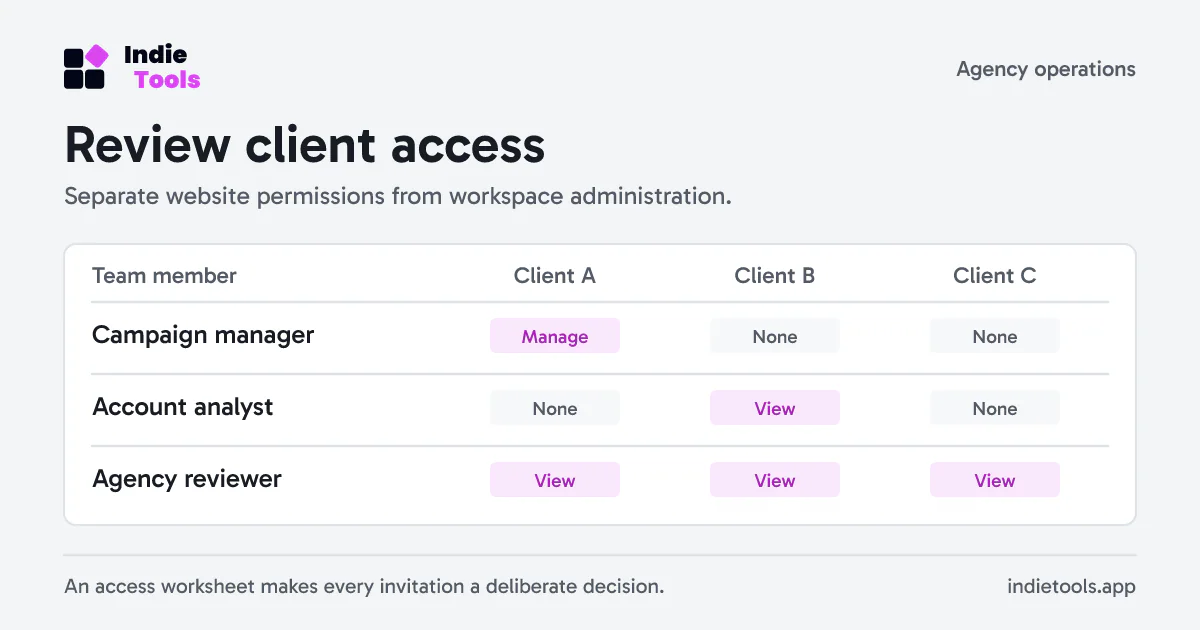
An agency's analytics access list should describe the work each person is allowed to do. A job title alone is too vague: a contractor may need to configure one client website, while a finance colleague needs to read results across several clients without changing anything.
Use a small access worksheet before sending invitations, then verify it with separate test accounts. The worksheet below is an operating template, not a claim that every analytics product supports the same permission model.
Start with five decisions per person
Record the person, business purpose, allowed websites, permitted actions and review date. Add an approver so an invitation is traceable to a decision instead of becoming an informal favor.
| Person | Purpose | Website scope | Required actions | Review trigger |
|---|---|---|---|---|
| Campaign contractor | Configure Client A tracking | Client A only | Read reports and manage integration settings | Campaign ends |
| Account analyst | Prepare Client B report | Client B only | Read reports | Account assignment changes |
| Operations lead | Review agency results | All client websites | Read reports | Quarterly access review |
| Workspace owner | Manage the agency account | Entire workspace | Billing and membership administration | Owner changes |
These are fictional roles. Substitute your own client boundaries and avoid putting real customer information into a public planning document.
The important distinction is between managing a website and administering the workspace containing it. Someone who can change a tracking integration may handle a sensitive site key. That does not mean they should invite other people or open the agency's billing portal.
Translate the worksheet into actual permissions
Revfaro's team and website access documentation separates workspace roles from website permissions. A Member can receive Viewer or Manager access to selected websites. Owners and Admins manage all websites; a website Manager does not become a workspace administrator.
Pay particular attention to the difference between a fixed selection and All websites, read-only. In Revfaro, the latter includes websites added later. That can suit an internal analyst, but it is a poor default for a client who must see only their own property.
Also inspect invitations that have not been accepted. An unused invitation is still a future access decision. Revoke it when the engagement ends rather than assuming an empty account is harmless.
Test the boundary, not just the menu
Create a dedicated test member and check both allowed and forbidden actions. Do not validate permissions only through the owner's session.
- Open the assigned website and confirm its reports are readable.
- Visit another client's known dashboard URL directly. Access should be denied.
- With Viewer access, attempt to open integration settings or perform a write.
- With Manager access, confirm the required site changes work, then verify workspace membership and billing remain unavailable.
- Revoke the grant while the member has a tab open. Retry the previously allowed action.
Record the expected result and observed result for each case. A hidden navigation item is useful interface behavior, but server enforcement is the boundary that matters.
Include exports and recurring delivery
Access extends beyond the current browser window. Review scheduled reports, alerts, downloaded files and links shared outside the workspace. Check the product's documented rules for recipients after access is removed; previously downloaded files cannot be recalled through a role change.
Revfaro applies current website access to reports and alerts, including queued messages. Your agency still needs an offboarding procedure for copies already sent to a client or contractor.
Keep a short closeout record: access revoked, outstanding invitations canceled, recurring recipients reviewed and any shared credentials rotated where necessary. Store that record with the engagement, not in an analytics event property.
Make the next review inexpensive
A useful review asks whether the original purpose still exists. Compare the worksheet against actual membership and investigate exceptions before adding broader roles to solve a temporary support problem.
If you are changing analytics tools, pair this review with the privacy-first analytics migration checklist. For the wider operational handover, the SaaS launch checklist helps keep access, instrumentation and release ownership in the same plan.
 Revfaro